Namecheap Delegate Access: How to Give Access Safely
Learn how Namecheap delegate access works, how to give a developer or freelancer domain access without sharing your password, manage permissions, and remove access when needed.
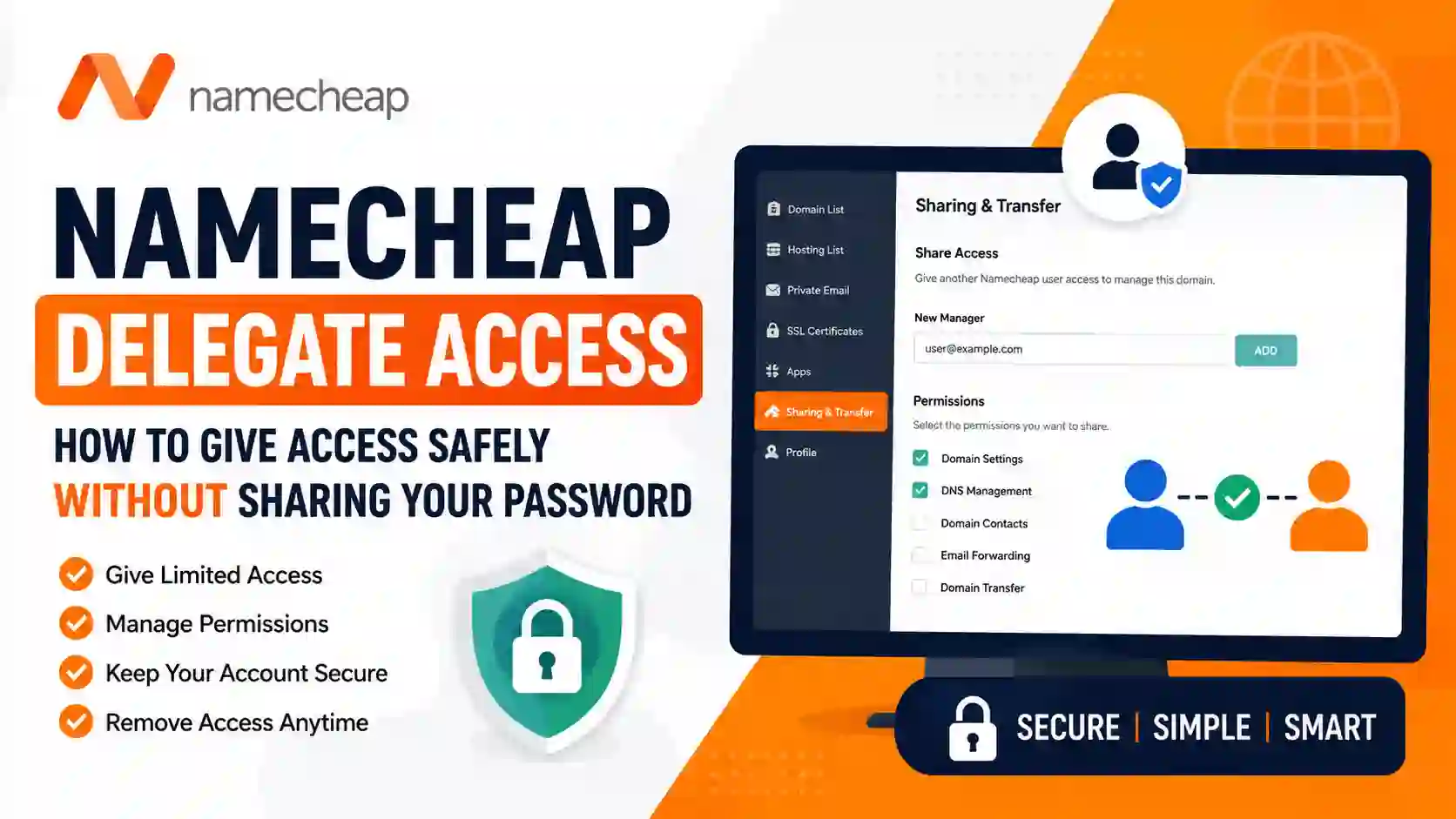
Namecheap Delegate Access: How to Give Someone Access to Your Domain Without Sharing Your Password
If you manage a domain through Namecheap and need a developer, employee, agency, freelancer, or business partner to make changes, you do not need to give them your main Namecheap username and password. Namecheap delegate access allows a domain owner to share selected management permissions with another Namecheap user while keeping ownership and other sensitive settings under their control.
This is especially useful for website owners in the United States who work with web developers, SEO agencies, IT professionals, virtual assistants, marketing teams, and freelance developers. Instead of handing over complete access to your Namecheap account, you can provide access to a specific domain and select the settings that another person is allowed to modify.
Namecheap's official Share Access feature allows the domain owner to give another Namecheap user limited access to specific domain-management functions. The other user must have a separate Namecheap account, and the domain owner can select which settings that person can edit.
This guide explains Namecheap delegate access, what it means, how it works, how to give someone access to a domain, what permissions you can provide, how to remove access, and the security precautions you should follow.
What Is Namecheap Delegate Access?
Namecheap delegate access is a way to give another Namecheap account limited management access to one of your domains without sharing your primary Namecheap account credentials.
For example, imagine you own:
example.com
You hired a web developer to configure DNS records and connect your domain to your website hosting provider.
The developer needs to modify DNS settings, but you do not want to give the developer access to your entire Namecheap account.
Instead of sharing your password, you can use Namecheap's Share Access feature to appoint that person as a manager for the domain and give them only the permissions they require.
The domain remains under your account, while the other user receives access through their own Namecheap account.
This is an important distinction because delegate access is not the same as transferring ownership.
The domain owner remains in control, while the delegated user receives only the permissions selected by the owner.
Namecheap specifically describes the Share Access feature as a way to retain control of a domain while giving customers or coworkers access to selected domain-editing functions.
Why Use Namecheap Delegate Access?
Sharing your Namecheap password with a developer may seem convenient, but it creates unnecessary security risks.
If you give someone your complete account credentials, they could potentially access services, domains, account information, and other settings that they do not need for their work.
Namecheap itself recommends not disclosing account login details and suggests using the Share Access option when someone needs access to selected domains.
Namecheap delegate access solves this problem by separating the user's login from your account.
The developer signs into their own Namecheap account.
You remain signed into your own account.
The developer sees the domain that you shared with them and can perform only the actions allowed by the permissions you selected.
This creates a much safer workflow for businesses and individuals.
Namecheap Delegate Access vs Sharing Your Password
The difference between these two approaches is significant.
| Method | Security | Access Control | Separate User Account | Recommended |
|---|---|---|---|---|
| Share your Namecheap password | Low | Very limited | No | No |
| Give complete account credentials | Low | No granular control | No | No |
| Namecheap Share Access | Higher | Yes | Yes | Yes |
| WordPress user account | Depends on role | Yes, for WordPress | Yes | Yes for website tasks |
| FTP account | Higher when properly configured | Directory-based | Yes | Yes for file access |
| Separate hosting access | Depends on provider | Often available | Yes | Yes when appropriate |
For domain-management tasks, Namecheap delegate access is generally the better solution.
For WordPress tasks, create a separate WordPress user with an appropriate role.
For file-management tasks, create an FTP account rather than giving someone your complete hosting credentials. Namecheap also provides the ability to create additional FTP accounts with access restricted to specific directories.
Who Can Use Namecheap Delegate Access?
The feature is useful for almost anyone who needs another person to manage a domain.
Common examples include:
Website owners
If you own a website but do not understand DNS settings, you can give your developer access to the required domain settings.
Web developers
Developers frequently need to configure:
- DNS records
- Nameservers
- Domain-related settings
- Verification records
- Website connections
Instead of requesting your password, the developer can receive delegated access.
SEO agencies
An SEO agency may need to configure domain verification records or other DNS-related settings.
You can give the agency only the permissions necessary for the project.
Digital marketing agencies
Marketing teams may need to verify domains for advertising, email marketing, analytics, or other services.
Delegated access can make this process easier without giving the agency complete control over your account.
Freelancers
If you hire a freelancer to work on your website for a few days or weeks, you can give them temporary access and remove it when the project is finished.
Business teams
A company may have a domain owner who wants an IT employee to manage DNS while keeping ownership and other account settings under the business owner's control.
Important Requirements Before Using Namecheap Delegate Access
There are a few important requirements to understand before you begin.
First, the person receiving access needs their own Namecheap account. Namecheap specifically states that the destination user needs to create a separate account.
Second, only the domain owner can share access to the domain.
Third, expired domains cannot be shared until they are renewed.
Finally, Namecheap's Share Access feature does not work for SSL services. If another user needs to manage a purchased SSL certificate, Share Access does not provide that capability.
How to Create a Namecheap Account for the Person You Want to Add?
Before using Namecheap delegate access, the other person should have their own Namecheap account.
If your developer already has a Namecheap account, you can ask for their Namecheap username or the email address associated with their account.
If they do not have an account, they can create one.
Namecheap requires an account to manage services through its platform, and the username is associated with the user's account.
It is better for the other person to create their own account rather than creating an account for them.
This means they control their own login credentials and security settings.
How to Give Namecheap Delegate Access?
The process is straightforward.
Step 1: Sign in to Namecheap
Sign in to your Namecheap account using your own credentials.
Do not give your password to the person who needs access.
Step 2: Open Your Domain List
After logging in, open Domain List from the left-side navigation.
You should see the domains associated with your account.
Step 3: Find the Domain
Locate the domain that you want to share.
Click Manage next to the domain.
Make sure you select the correct domain before continuing.
This is especially important if you manage multiple domains for different websites or businesses.
Step 4: Open Sharing & Transfer
Within the domain management area, select the Sharing & Transfer tab.
Find the Share Access section.
This is where you can add another Namecheap user as a domain manager.
Step 5: Enter the New Manager
Enter the other user's Namecheap username or the email address associated with their Namecheap account in the New Manager field.
Then select Add.
Step 6: Select Permissions
Namecheap will allow you to select the settings that the new manager can access.
This is one of the most important parts of the process.
Do not automatically give someone every available permission.
Instead, consider what the person actually needs.
For example, if a developer only needs to modify DNS records, provide the appropriate DNS-related permission rather than giving them access to unrelated domain settings.
Step 7: Confirm With Your Password
Namecheap requires you to enter your account password to confirm that you want to share the selected settings.
This adds an additional security step before delegated access is created.
Step 8: Accept the Invitation
Depending on the destination user's security settings, access may be provided immediately or an invitation may be sent to the email address associated with their Namecheap account.
If an invitation is sent, the recipient must accept it.
Namecheap states that the user must be logged into their Namecheap account before clicking the invitation confirmation link, and the link is active for seven days.
After the invitation is accepted, the domain becomes visible in the other user's Namecheap account with only the permissions you granted.
What Can a Delegated User Do?
The exact capabilities available to the delegated user depend on the permissions selected by the domain owner.
This is why it is important to review the available options carefully.
For example, you may want a developer to manage DNS but not modify ownership-related information.
The goal should always be to provide the minimum level of access required to complete the task.
Namecheap specifically advises against giving unnecessary access to all settings for security reasons.
Can You Give Someone DNS Access Only?
One of the most useful applications of Namecheap delegate access is allowing another person to work with domain settings without giving them complete control over your account.
This can be particularly helpful when connecting a domain to:
- WordPress hosting
- Shopify
- Webflow
- Email services
- Google Workspace
- Microsoft services
- Cloud platforms
- CDN services
- Email marketing platforms
- Analytics platforms
- Other third-party services
For example, a developer might tell you:
"Please add this TXT record to your DNS."
Instead of asking for your Namecheap password, you can provide the developer with appropriate delegated access.
The developer can then make the necessary DNS changes through their own Namecheap account.
Can You Give a Web Developer Full Namecheap Access?
You should generally avoid giving a developer more access than necessary.
If the developer only needs to configure DNS, give them the relevant domain-management permissions.
If they need to manage website files, use a separate hosting or FTP account where possible.
If they need to manage WordPress content, create a separate WordPress user.
Namecheap also recommends creating individual WordPress accounts with appropriate roles instead of unnecessarily providing administrator-level access.
This approach follows the principle of least privilege.
The person receives enough access to do their job but not enough access to unnecessarily affect other parts of your website or account.
Is Namecheap Delegate Access Safe?
Yes, it is generally a much safer approach than sharing your Namecheap password.
The biggest security advantage is that the delegated user uses their own Namecheap account.
Your main password remains private.
You also retain ownership of the domain and can remove the user's managerial rights when they no longer need access.
Namecheap recommends using strong passwords, enabling two-factor authentication, avoiding password sharing, and enabling security notifications.
However, delegated access should still be treated seriously.
If you give someone permission to modify DNS, they may be able to make changes that affect your website, email, verification systems, or other online services.
Only give access to people you trust.
Should You Give Your Developer DNS Access?
In many situations, yes.
DNS access is often required when a developer needs to:
- Connect your domain to a server
- Add verification records
- Configure email authentication
- Connect a CDN
- Point a subdomain to a service
- Configure a third-party application
However, DNS changes can also break a website or email service if configured incorrectly.
Therefore, if you are not technically comfortable reviewing DNS records, you should only give access to a developer or technical professional you trust.
Before major DNS changes, keep a record of your existing DNS configuration.
That gives you a reference point if something goes wrong.
How to Accept a Namecheap Delegate Invitation?
If someone has granted you Namecheap delegate access, you may receive an invitation.
Make sure you are logged into the correct Namecheap account.
Namecheap states that the invitation confirmation link needs to be opened while you are logged into the destination account, and the link is active for seven days.
After accepting the invitation, the shared domain should appear in your Namecheap account.
The permissions you receive will depend on what the domain owner selected.
You will not automatically receive complete control over the domain.
What If the Invitation Does Not Work?
If you receive a Namecheap delegate invitation but cannot access the domain, check the following:
- Make sure you are logged into the correct Namecheap account.
- Confirm that the invitation was sent to the correct email address.
- Check whether the invitation has expired.
- Open the invitation in the same browser where you are logged into Namecheap.
- Ask the domain owner to verify the invitation status.
- Confirm that the domain has not expired.
- Make sure the owner has actually granted the required permissions.
Namecheap says the invitation link is active for seven days. If it expires, the owner may need to send a new invitation.
How to Remove Namecheap Delegate Access?
You should remove access as soon as a developer, employee, freelancer, or agency no longer needs it.
For example, imagine you hired a developer to migrate your website.
Once the migration is complete, there is usually no reason for that developer to retain ongoing access to your domain.
To remove an accepted manager, go to the domain's Sharing & Transfer section and locate the manager.
Namecheap provides an Edit option with a dropdown where you can select Remove.
After removing the manager, click Done to save the change.
This is one of the reasons delegate access is preferable to password sharing.
If you had shared your password, you would need to change the password and potentially deal with saved credentials or other security concerns.
With delegated access, you can simply remove the user's domain-management rights.
How to Cancel a Pending Invitation?
If the other person has not accepted the invitation yet, you can cancel the pending invitation.
Go to:
Domain List → Manage Domain → Sharing & Transfer → Share Access
Find the pending manager invitation and select the management option.
Namecheap provides a Cancel option for pending manager invitations.
This is useful if you accidentally invited the wrong user or no longer want to provide access.
Can Namecheap Delegate Access Be Used for Multiple Domains?
Namecheap's current documentation states that there is no option to grant modification rights for domains in bulk.
This means that if you have a large portfolio of domains, you may need to configure sharing individually.
For example, if you own:
- example1.com
- example2.com
- example3.com
- example4.com
and want a developer to manage all four, you should expect to configure the appropriate access for each domain rather than assuming one Share Access setting automatically applies to every domain.
This is an important consideration for agencies, domain investors, and businesses managing many websites.
Namecheap Delegate Access for Businesses
For US-based businesses, delegated domain access can be particularly useful.
A company might have a domain owned and managed by a business owner while the technical work is handled by:
- An internal IT employee
- A marketing manager
- An SEO agency
- A web development agency
- A freelance developer
- A managed service provider
Instead of giving every employee the same account credentials, the business can assign access according to the person's responsibilities.
For example, an IT employee might need DNS-management permissions, while a marketing employee might need access to verify a domain for a marketing platform.
This creates a cleaner separation of responsibilities.
Namecheap Delegate Access for Agencies
Agencies frequently work with multiple clients.
Suppose a US digital agency manages websites for 20 businesses.
The agency should not ask every client to send their Namecheap username and password.
A better process is for each client to provide the agency's Namecheap account with appropriate delegated access to the required domain.
When the agency finishes the project, the client can remove the agency's access.
This is more professional and reduces the need to exchange sensitive credentials.
Namecheap Delegate Access for Freelancers
Freelancers can also benefit from this feature.
Suppose you hire a freelancer to configure your domain for a new website.
Instead of sending:
Username: yourusername
Password: yourpassword
you can ask the freelancer to provide their Namecheap account information.
Then you can grant the required permissions through Namecheap.
After the project is complete, remove the freelancer's access.
This creates a much cleaner workflow.
What Namecheap Delegate Access Does Not Do?
Understanding the limitations is important.
Namecheap delegate access does not mean the other person becomes the owner of your Namecheap account.
It also does not mean they automatically receive access to every Namecheap service.
For example, Namecheap states that Share Access does not work for purchased SSL services.
Likewise, if someone needs access to WordPress, you should normally create a WordPress account rather than assuming domain delegation provides WordPress access.
If someone needs to upload website files, consider creating a separate FTP account.
Namecheap's hosting documentation explains that additional FTP accounts can be created and restricted to particular directories.
Namecheap Delegate Access and WordPress
Domain access and WordPress access are two different things.
For example, a WordPress developer may need access to your WordPress dashboard but not your Namecheap account.
In that situation, create a separate WordPress user.
WordPress provides roles such as Administrator, Editor, Author, Contributor, and Subscriber, with different levels of capability.
For content work, an Editor or Author role may be sufficient.
For technical WordPress development, an Administrator account may sometimes be necessary, but it should only be provided to a trusted developer and removed or downgraded when the work is complete.
The same principle applies across your entire website infrastructure: give each person only the access they need.
Namecheap Delegate Access and Hosting
Namecheap domain access should not be confused with hosting access.
A developer who needs to change DNS may only need domain access.
A developer who needs to modify website files may need hosting or FTP access.
A WordPress developer may need WordPress access.
An email administrator may need access to your email service.
Keeping these systems separate can significantly reduce security risks.
For example, if someone only needs to upload files, Namecheap provides the ability to create an FTP account with directory-specific access rather than giving them your main cPanel credentials.
Security Best Practices
If you use Namecheap delegate access, follow these best practices.
Use the minimum permissions
Never give someone access to settings they do not need.
Use individual accounts
Every person should use their own Namecheap account.
Do not create a shared login for an entire team.
Enable two-factor authentication
Namecheap provides two-factor authentication within its security settings.
The delegated user should also protect their account.
Enable security notifications
Security notifications can help you identify suspicious activity or unexpected changes.
Namecheap recommends security notifications as part of its account-security guidance.
Remove old users
When a freelancer, employee, or agency finishes working with you, remove their delegated access.
Keep DNS records documented
Before major DNS changes, record your existing DNS configuration.
Never send your primary password
There is rarely a good reason to send your Namecheap password to a developer.
Use the appropriate access mechanism instead.
Important Namecheap Delegate Access Links and Information
| Resource | What It Is Used For |
| Namecheap Share Access Guide | Official instructions for sharing a domain with another Namecheap user |
| Namecheap Share Access Overview | Explains what delegated domain access does |
| Namecheap Security Guide | Account security and password-sharing guidance |
| Namecheap Security Settings | Password, 2FA, recovery, alerts, and invitation settings |
| Namecheap FTP Accounts Guide | Create separate FTP access for website files |
| Namecheap WordPress User Guide | Understand WordPress roles and permissions |
| Namecheap EasyWP User Roles | Manage WordPress users and permissions |
| Namecheap account | Main account used to manage domains and services |
Common Namecheap Delegate Access Mistakes
One of the most common mistakes is giving someone access to everything when they only need one setting.
Another common mistake is failing to remove access after a project ends.
You should also avoid using a shared Namecheap account for multiple people.
For example, if five employees all use the same username and password, it becomes difficult to determine who made a particular change.
Individual accounts provide better accountability.
Another mistake is confusing Namecheap domain access with website access.
Giving someone permission to manage a domain does not mean they automatically have WordPress administrator access.
Likewise, WordPress administrator access does not necessarily provide Namecheap domain access.
Each system should have its own appropriate user permissions.
Is Namecheap Delegate Access Better Than Sharing Your Password?
Yes.
For domain-management tasks, using Namecheap's Share Access feature is significantly better than sending your primary account password to another person.
The delegated user gets access through their own Namecheap account, while you retain control of the domain.
You can also remove their access when the project ends.
Namecheap itself recommends not sharing account credentials and recommends using domain managers when someone needs access to selected domains.
Conclusion
Namecheap delegate access is a useful feature for website owners who need another person to manage a domain without giving away their main Namecheap account credentials.
Instead of sharing your password with a developer, freelancer, agency, employee, or technical consultant, you can provide access through their own Namecheap account. You remain the domain owner and can control which settings the other person is allowed to modify.
For US website owners, businesses, agencies, and freelancers, this provides a much cleaner way to collaborate on domain management. It can be particularly useful when someone needs to configure DNS, connect a website to hosting, verify a domain, or make other domain-related changes.
The most important rule is to give the minimum permissions necessary. If someone only needs DNS access, do not give them unnecessary control over unrelated settings. If someone needs WordPress access, create a WordPress user. If they need website-file access, consider a separate FTP account. This separation keeps your website infrastructure more secure.
You should also enable two-factor authentication, use strong passwords, monitor security notifications, and remove delegated users when they are no longer working on your project. Namecheap recommends these types of security practices as part of protecting your account.
Ultimately, Namecheap delegate access is a better alternative to sharing your password. It allows you to collaborate with developers and other professionals while maintaining ownership and control of your domain. If you regularly work with freelancers, agencies, or technical teams, using delegated access should be part of your standard website-management and security process.
Frequently Asked Questions
Verified Expert in deals and money-saving tips


No comments yet. Be the first to share your thoughts!