How to Move a WordPress Site to New Host (Complete Guide)
Learn how to move a WordPress site to new host step by step. Discover the best WordPress migration plugins, backup methods, DNS settings, and SEO tips to transfer your website safely without losing content.
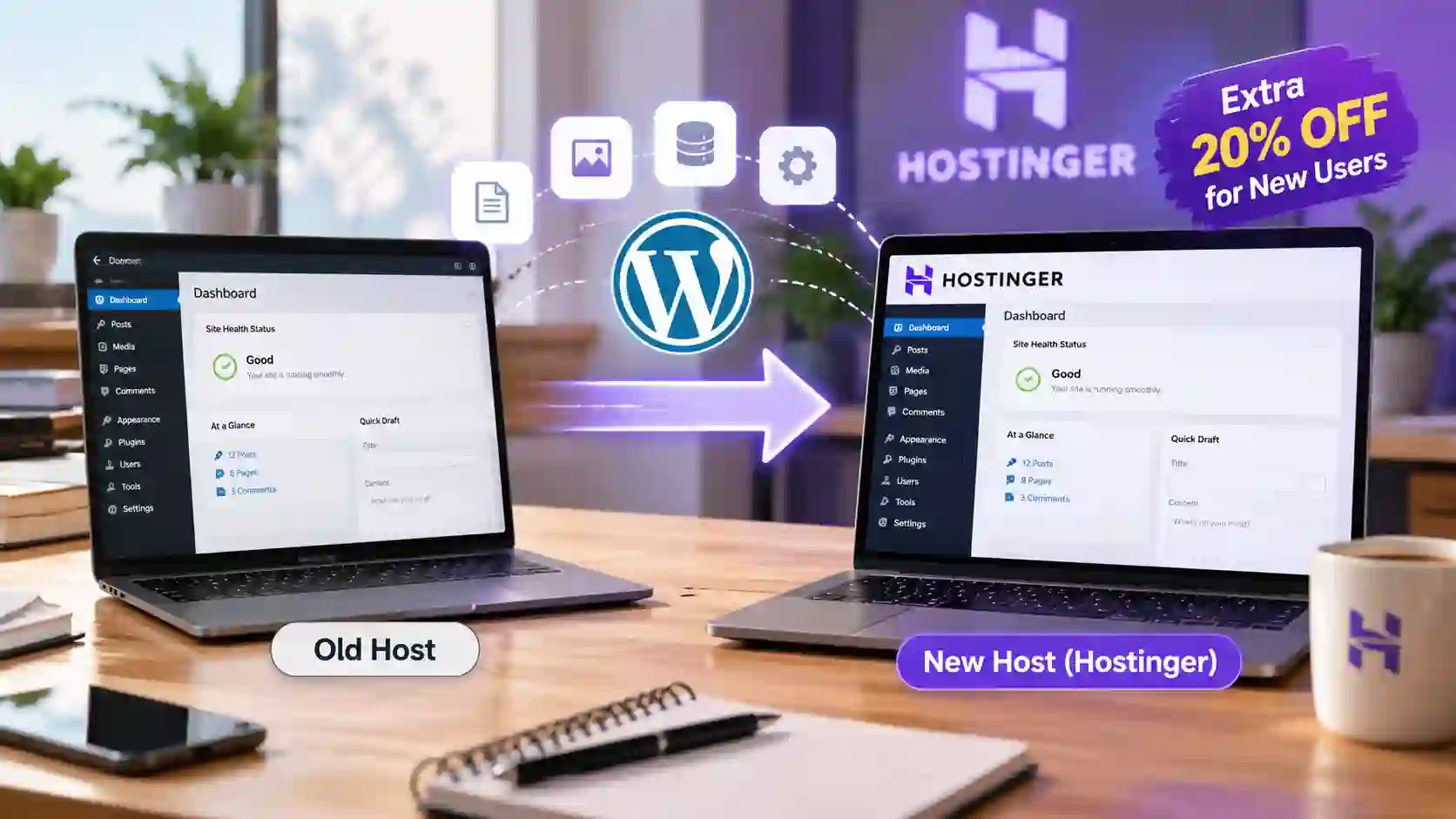
How to Move a WordPress Site to a New Host: Complete Step-by-Step Guide
Moving a WordPress website to a new hosting provider can seem like a difficult task, especially if you have never migrated a website before. You may worry about losing blog posts, images, website settings, plugins, or important SEO rankings. The good news is that you can move your WordPress website safely by following the correct process.
Whether you want to switch from Hostinger to another hosting provider, upgrade your hosting plan, reduce hosting expenses, or improve your website's loading speed, this complete guide will help you understand how to transfer your WordPress website to a new host.

Move Your WordPress Website to Hostinger in One Click!
Want to transfer your WordPress website without the technical hassle? Hostinger makes website migration easy with its supported automatic migration tools. Move your website to Hostinger in just a few clicks and enjoy reliable hosting, fast performance, and easy website management.
In this article, you will learn how to migrate a WordPress website using plugins, how to transfer website files and databases manually, how to point your domain to the new hosting server, and how to check that everything works correctly after migration. You will also discover the best WordPress migration plugins for beginners and website owners.
Quick Overview: How to Move a WordPress Site to a New Host
The easiest way to move a WordPress website is to create a complete backup, transfer that backup to your new hosting account, restore the website, and update your domain's DNS settings.
Here is the basic process:
Choose a new hosting provider and purchase a suitable hosting plan.
Create a complete backup of your existing WordPress website.
Install a WordPress migration plugin, such as Duplicator or All-in-One WP Migration.
Export your website files and database.
Import or restore the website on the new hosting server.
Test the migrated website before changing DNS settings.
Point your domain name to the new hosting provider.
Check your website's pages, images, forms, plugins, SSL certificate, and SEO settings.
Keep your old hosting account active until you confirm that the migration is successful.
If you use a migration plugin and your website is relatively small, the process can be straightforward. Larger websites, online stores, membership platforms, and websites with extensive databases may require additional preparation.
Important Links and Information for WordPress Website Migration
Before starting the migration process, review the following resources. These links will help you access official WordPress documentation and the recommended migration plugins.
| Resource | Purpose | Official Link |
|---|---|---|
| WordPress Migration Guide | Understand the standard migration process | https://developer.wordpress.org/advanced-administration/upgrade/migrating/ |
| Duplicator | Create a website backup and migrate WordPress | https://wordpress.org/plugins/duplicator/ |
| All-in-One WP Migration | Export and import an entire website | https://wordpress.org/plugins/all-in-one-wp-migration/ |
| UpdraftPlus | Back up and restore WordPress files and databases | https://wordpress.org/plugins/updraftplus/ |
| Migrate Guru | Migrate supported WordPress websites between hosts | https://wordpress.org/plugins/migrate-guru/ |
| WPvivid Backup Plugin | Back up, restore, and migrate WordPress websites | https://wordpress.org/plugins/wpvivid-backuprestore/ |
| WordPress Plugins Directory | Find additional migration and backup tools | https://wordpress.org/plugins/ |
| WordPress Site Health | Check website health and technical information | https://wordpress.org/documentation/article/site-health-screen/ |
Plugin features, file-size restrictions, and premium requirements may change. Review the current plugin documentation before beginning your migration.
Why Should You Move Your WordPress Website to a New Host?
There are several reasons why website owners decide to change their hosting provider. The right hosting environment can make managing a website easier and provide the resources required for future growth.
1. Improve Website Loading Speed
Website speed affects the experience visitors have when browsing your content. If your current hosting server responds slowly, even an optimized WordPress website may take longer to load.
Moving to a hosting provider with better server performance, suitable resources, and reliable infrastructure may improve loading speed. However, migration alone does not guarantee a faster website. Your theme, plugins, images, caching, and database also influence performance.
2. Reduce Hosting Expenses
Hosting costs can increase when promotional pricing ends or when you need a more expensive plan. You may find another provider offering comparable resources at a more suitable renewal price.
Before switching, compare the total cost of hosting, renewal charges, backups, email services, SSL certificates, and migration assistance.
3. Handle Increasing Website Traffic
If your website receives more visitors than before, your current hosting plan may not provide sufficient CPU, memory, storage, or database resources.
Moving to a more powerful plan can help accommodate traffic growth, particularly for content-heavy websites, recruitment portals, educational websites, and affiliate blogs.
4. Improve Reliability and Support
Frequent downtime, poor customer support, and recurring server errors can create problems for both visitors and website owners.
A new hosting provider may offer better uptime, technical support, backups, security features, and server management tools.
5. Get Better Website Management Features
Some hosting providers offer convenient WordPress staging environments, automatic backups, one-click installations, security tools, and migration assistance.
These features can make website management easier, especially if you operate multiple WordPress websites.
Things to Do Before Moving Your WordPress Site
Preparation is one of the most important parts of a successful WordPress migration. A few simple checks can help prevent data loss, broken pages, and unnecessary downtime.
1. Choose the New Hosting Provider
First, select the hosting company where you want to move your website.
Check whether the new hosting plan supports your website's current WordPress version, PHP requirements, database configuration, storage needs, and expected traffic.
If your website uses WooCommerce, membership plugins, or other database-intensive features, confirm that the new plan can handle them.
2. Create a Complete Website Backup
Never migrate a website without creating a separate backup of the original site.
Your backup should include:
WordPress core files.
Themes and plugins.
Images and other media uploads.
The WordPress database.
Configuration files, including
wp-config.php.Custom code and important server configuration files.
Any additional files required by your website.
Store a copy on your computer or in secure remote storage. Do not rely exclusively on a backup stored on the hosting account you intend to cancel.
3. Record Your Current Website Settings
Before migration, note down your website's important settings, including:
WordPress administrator login details.
Domain name and preferred URL format.
Current PHP version.
Active theme and important plugins.
SSL certificate configuration.
Email hosting and DNS records.
Caching and security settings.
Analytics and advertising integrations.
Redirect rules and custom code.
This information makes it easier to troubleshoot problems after the migration.
4. Check Your Website's Size
Open your hosting control panel and check how much storage your website uses.
A website with a few hundred blog posts may be relatively easy to migrate, while a site with thousands of images, large backups, video files, or extensive WooCommerce data may require a different approach.
Choose a migration plugin that can handle your website's size and the server limits imposed by your hosting provider.
5. Avoid Making Unnecessary Changes
If possible, avoid updating your theme, changing plugins, redesigning your website, and migrating to a new host simultaneously.
Keeping changes to a minimum makes troubleshooting easier. Once the migration is complete and your new hosting environment is stable, you can make additional improvements.
Best WordPress Migration Plugins to Transfer Your Website
A WordPress migration plugin can save considerable time by automating the process of copying website files, database content, and configuration settings.
Here are five useful options.
1. Duplicator
Duplicator is one of the first plugins to consider when moving a WordPress website to a different hosting provider.
It can package website files and database content into a migration archive. Depending on the workflow and plugin edition, you can upload the package to the destination server and use the installer to restore your website.
Best for: Website owners who want a structured migration process and the flexibility to move a website between hosting environments.
Advantages include:
Creates a portable website backup.
Supports website cloning and migration workflows.
Can be useful for moving sites to a new server.
Offers additional migration capabilities in paid editions.
The free version may require manual steps for database creation, file uploads, and installation. Some convenient import features are reserved for paid plans.
Official plugin: https://wordpress.org/plugins/duplicator/
2. All-in-One WP Migration
All-in-One WP Migration is another popular option for beginners. Its export and import workflow is designed to make transferring an entire WordPress website easier.
The general process involves exporting the existing website to a file and importing that file into a WordPress installation on the new host.
Advantages include:
Beginner-friendly interface.
Website export and import workflow.
Useful for moving website content and settings together.
Suitable for many standard WordPress websites.
However, large website archives may encounter upload limits, memory restrictions, or other server limitations. Some size-related capabilities may require a paid extension.
Best for: Beginners who prefer a straightforward export-and-import process.
Official plugin: https://wordpress.org/plugins/all-in-one-wp-migration/
3. UpdraftPlus
UpdraftPlus is widely used for WordPress backups and restoration. It can back up your website's database, plugins, themes, uploads, and other files.
You can store backups remotely and restore them on a destination website. Direct migration between sites and certain migration conveniences depend on the available version and features.
Advantages include:
Backup and restoration tools.
Support for remote backup storage.
Useful for ongoing website maintenance.
Can help restore a site after a failed migration.
For some migrations, you may need a premium feature or additional configuration.
Best for: Website owners who want backup management alongside migration capabilities.
Official plugin: https://wordpress.org/plugins/updraftplus/
4. Migrate Guru
Migrate Guru is designed to simplify supported WordPress migrations between hosting environments.
It can be useful when transferring larger websites, particularly if your current server has limited resources for generating a complete local backup.
Before using it, confirm that your source and destination environments and hosting providers are supported.
Advantages include:
A migration-focused workflow.
Can simplify supported remote migrations.
Useful when handling larger websites.
Reduces the need for some manual migration steps.
Best for: Users who want a migration-focused plugin and whose hosting setup is supported.
Official plugin: https://wordpress.org/plugins/migrate-guru/
5. WPvivid Backup Plugin
WPvivid provides backup, restoration, and migration-related functionality for WordPress websites.
Depending on the available features and configuration, you can create backups, store them remotely, restore website data, and transfer a site to another WordPress installation.
Advantages include:
Backup and restore tools.
Support for common WordPress website components.
Options for remote storage.
Additional features available through paid offerings.
Best for: Website owners looking for a backup solution that can also support website migration.
Official plugin: https://wordpress.org/plugins/wpvivid-backuprestore/
Which WordPress Migration Plugin Should You Choose?
For most beginners, I recommend starting with Duplicator or All-in-One WP Migration.
Choose Duplicator if you want a migration package that gives you flexibility over the destination server. Choose All-in-One WP Migration if you prefer an export-and-import workflow and your website fits the applicable file and server limits.
If you already use UpdraftPlus for regular backups, check whether its migration workflow meets your requirements.
Regardless of the plugin, create a separate backup before starting. A migration plugin makes the process easier, but it does not eliminate the need for testing and recovery planning.
Method 1: How to Move a WordPress Site Using All-in-One WP Migration?
This method is suitable for many beginners who want to transfer a WordPress website without manually copying every file.
Step 1: Install the Plugin on Your Old Website
Log in to your existing WordPress dashboard.
Go to Plugins → Add New Plugin. Search for All-in-One WP Migration, install the plugin, and activate it.
Open the plugin's menu in your dashboard.
Step 2: Export Your Website
Navigate to the export section and select the option to export your website to a file.
The plugin will prepare an export containing the website data supported by its export process.
Wait for the process to finish and download the generated file to your computer.
Keep this file secure because it may contain website content, user information, and configuration data.
Step 3: Prepare the New Hosting Account
Log in to your new hosting control panel.
Add or configure your domain name and create a WordPress installation on the destination hosting account. If your provider supports a temporary domain or staging environment, you can use it to prepare the migration before directing public traffic to the new server.
Make sure the destination environment has enough storage and supports the required WordPress and PHP versions.
Step 4: Install the Migration Plugin on the New Website
Log in to the new WordPress dashboard.
Install and activate All-in-One WP Migration on the destination website.
Open the import section and choose the option to import from a file.
Step 5: Import the Website Backup
Select the export file downloaded from your old website.
Wait for the upload and import process to complete. Follow the plugin's instructions carefully.
Depending on the plugin version, destination setup, and import workflow, the process may replace existing website content and settings. Do not import into a destination website containing important data unless you have backed it up first.
Some installations may encounter upload-size restrictions or require a compatible paid extension.
Step 6: Log In to the Migrated Website
Once the import finishes, follow the instructions to complete the migration.
Your original site's administrator credentials may now be the ones required to log in, because the imported database can replace the destination site's original users and settings.
If you cannot log in, verify the credentials from your original website and check whether the migration completed successfully.
Step 7: Test the Website
Before pointing your domain to the new server, test the migrated site.
Check the homepage, blog posts, categories, images, menus, plugins, and administrator dashboard. Confirm that the site uses the correct domain and that important functionality works as expected.
If the migration is successful, proceed to the DNS configuration section below.
Method 2: How to Move a WordPress Site Using Duplicator?
Duplicator provides an alternative migration workflow that can be useful when you want a portable backup package.
Step 1: Install Duplicator
Log in to your existing WordPress dashboard.
Go to Plugins → Add New Plugin, search for Duplicator, install it, and activate it.
Open Duplicator and create a new backup package using the available package-building workflow.
Step 2: Build the Migration Package
Follow the plugin's instructions to scan and package your website.
The package typically includes website files and database data, although the exact contents depend on your configuration and any exclusions you choose.
Resolve any important warnings before continuing. Save the generated archive and the required installer file if your selected workflow provides one.
Download the backup files to your computer.
Step 3: Set Up the Destination Hosting Account
Create or configure your website on the new hosting provider.
For the traditional installer workflow, you may need to create a new database and database user in the hosting control panel.
Record the database name, username, password, and database host. Give the database user the required permissions.
If you use an import workflow that does not require manual database setup, follow the instructions for that workflow instead.
Step 4: Upload the Migration Files
Upload the backup archive and installer file to the appropriate destination directory using the method specified in Duplicator's instructions.
Depending on the workflow, this may involve the hosting file manager or an FTP client.
Make sure you are using the correct website directory. Uploading the files to the wrong location can cause the installer to restore the website in an unexpected directory.
Step 5: Run the Installer
Follow Duplicator's documented installation process for your selected version.
If you are using the traditional installer workflow, open the installer at the destination location and provide the requested database and installation details.
Review the installation settings before proceeding. The migration may replace files or database content in the selected destination.
Step 6: Complete the Migration
Allow the installer to restore the website.
Follow the final cleanup and security instructions provided by the plugin. Remove installer files and temporary migration artifacts as directed.
Do not leave an accessible installer or backup archive in a public website directory.
Step 7: Check Your Website
Log in to the migrated WordPress dashboard and test the website.
Confirm that the homepage loads, blog posts are accessible, images appear correctly, and plugins operate normally.
If the domain has not yet been pointed to the new server, test the destination using a supported preview method, staging environment, or host-provided migration tool.
Method 3: How to Move a WordPress Website Manually?
If you prefer not to use a migration plugin, you can transfer your WordPress website manually. This method requires more technical knowledge but gives you direct control over files and database configuration.
Step 1: Download Your WordPress Files
Access your current hosting account using its file manager or an FTP client.
Locate the WordPress installation directory. Download the website files, including the wp-content directory and configuration files.
The wp-content directory is especially important because it contains your themes, plugins, uploads, and other site-specific resources.
Make sure hidden files, such as .htaccess, are included where applicable.
Step 2: Export the WordPress Database
Open phpMyAdmin or the database management tool provided by your hosting company.
Select the database used by your WordPress website and export it as an SQL file.
Check that you have selected the correct database. The database configuration in wp-config.php can help identify its name.
Save the SQL export securely alongside your website files.
Step 3: Create a New Database
Log in to your new hosting control panel.
Create a database and a database user. Assign the user the necessary permissions.
Record the new database details, because you will need them when configuring WordPress.
Step 4: Upload the WordPress Files
Upload the files downloaded from your old hosting account to the correct directory on the new server.
Check that the WordPress core files, themes, plugins, uploads, and configuration files have been copied successfully.
Large uploads can take time, so verify the transfer rather than assuming that every file was copied.
Step 5: Import the Database
Open phpMyAdmin on the new hosting account.
Select the destination database and import the SQL file exported from the old website.
If the database is too large for the web interface, ask your hosting provider about an appropriate import method.
Step 6: Update the wp-config.php File
Open the wp-config.php file on the new server.
Update the database settings to match your new hosting environment:
define('DB_NAME', 'new_database_name');
define('DB_USER', 'new_database_user');
define('DB_PASSWORD', 'your_database_password');
define('DB_HOST', 'localhost');
These are examples. Replace the placeholder values with the actual settings supplied by your host. The database host may not be localhost.
Preserve the other configuration settings, security keys, and custom code unless you have a specific reason to change them.
Step 7: Check Website URLs
If you are keeping the same domain name, your WordPress site and home URLs will generally remain unchanged.
If you are changing domains, moving from a temporary URL, or changing the URL structure, you may need to perform a database search and replace.
Use a migration tool that understands WordPress serialized data or follow WordPress's official migration guidance. A simple text replacement across the database can corrupt serialized settings.
Step 8: Test the Migrated Website
Check the website's configuration, file permissions, database connection, and server logs if necessary.
Confirm that the homepage, blog posts, images, plugins, and administrator dashboard work correctly before changing public DNS records.
Manual migration is powerful, but beginners should consider using a migration plugin or requesting assistance from their hosting provider.
How to Point Your Domain to the New Hosting Provider?
After the website has been copied and tested, the next step is to direct your domain name to the new hosting server.
Important: You usually do not need to transfer your domain registration to the new hosting company just to change hosting providers. Your domain can remain with its existing registrar.
Step 1: Obtain the New DNS Settings
Log in to your new hosting account.
Find the nameservers or DNS records provided for your domain.
Your provider may instruct you to change nameservers or update specific records, such as the A record for your root domain and the relevant record for www.
Follow the provider's instructions carefully.
Step 2: Open Your Domain Registrar
Log in to the company where your domain is registered.
Locate the domain's DNS or nameserver settings.
If you manage DNS through a separate service, such as a DNS proxy provider, you may need to make the changes there instead.
Step 3: Update Nameservers or DNS Records
If you are switching the domain's nameservers, enter the nameservers supplied by your new provider.
If you are keeping your existing DNS service, update the necessary records to point to the new server.
Before changing nameservers, copy any important existing DNS records. These may include email-related MX, SPF, DKIM, and DMARC records, verification records, and subdomain records.
Changing nameservers without recreating required records can interrupt email or other services.
Step 4: Wait for DNS Propagation
DNS changes do not take effect everywhere at exactly the same moment. Some visitors may reach the old server while others reach the new server during the transition.
The timing depends on DNS caching, record TTL values, and the type of change.
Keep the old hosting account active while the change propagates. For websites that receive frequent comments, orders, or user submissions, plan the migration carefully to avoid data being written to one server but not the other.
Step 5: Install and Verify SSL
Once your domain points to the new server, confirm that HTTPS works correctly.
Activate the SSL certificate through your new hosting provider if needed.
Visit both the HTTP and HTTPS versions of your domain and check that visitors are directed to the intended secure URL.
How to Move a WordPress Site Without Losing SEO Rankings?
A hosting migration does not automatically cause a loss of search rankings. However, technical problems during migration can affect crawling, indexing, loading speed, and visitor experience.
Follow these precautions to protect your SEO.
Keep Your Domain Name and URLs the Same
If you are only changing hosting providers, keep the same domain name, permalink structure, and preferred HTTPS URL whenever possible.
For example, if your existing article is available at:
https://example.com/wordpress-hosting-guide/
Keep the same URL after migration.
Avoid changing article slugs or category structures during a hosting-only migration.
Check Your Robots.txt File
Confirm that your website is not accidentally blocking search engines from crawling important pages.
A staging environment may intentionally block indexing, but those restrictions should be reviewed before the public site goes live.
Verify Your XML Sitemap
Open your SEO plugin and check that the XML sitemap is accessible.
If you use an SEO plugin, confirm that the sitemap contains your important posts and pages and that its URLs use the correct domain and protocol.
Check Redirects
If you change your domain or URL structure as part of the migration, create appropriate permanent redirects from the old URLs to the corresponding new URLs.
Do not redirect every old page to the homepage when a more relevant destination exists.
If you keep the same domain and URL structure, unnecessary redirects are generally not required.
Monitor Google Search Console
After migration, check Google Search Console for crawling issues, indexing changes, server errors, and unusual changes in search performance.
A hosting-only migration does not normally require a change-of-address request because the domain remains the same.
Continue monitoring traffic and important landing pages over the following days and weeks.
Common WordPress Migration Problems and How to Fix Them
Even a carefully planned migration can produce errors. The following are common issues and their potential solutions.
1. The Website Shows a Database Connection Error
This usually indicates that WordPress cannot connect to the database.
Check the database name, username, password, and database host in wp-config.php. Also confirm that the database user has the correct permissions and that the database server is running.
2. The Website Displays a 500 Internal Server Error
A 500 error can have several causes, including incompatible plugins, PHP errors, incorrect file permissions, or server configuration problems.
Check your hosting error logs and verify that the PHP version is compatible with your theme and plugins.
If necessary, disable a suspected plugin through the hosting file manager and investigate the error logs.
3. Images Are Missing
Missing images can result from incomplete file transfers, incorrect upload paths, file permission issues, or broken URLs.
Check the wp-content/uploads directory and verify that the media files were copied correctly.
If you have changed domains, inspect image URLs and use a WordPress-compatible search-and-replace process when necessary.
4. The WordPress Login Page Does Not Work
After a full database migration, the destination website may use the administrator accounts from the original site.
Try the original administrator credentials.
If the login page redirects incorrectly, check the WordPress site URL, HTTPS configuration, caching, and redirect rules.
5. The Website Is Redirecting to the Old Hosting URL
This can happen if the old temporary URL remains in the database or if a caching plugin or server rule contains outdated settings.
Review the WordPress home and site URLs, database references, and redirect configuration. Clear relevant caches after making corrections.
6. The Website Is Slow After Migration
A new server may use different caching settings, PHP versions, database resources, or server-side optimization tools.
Check page-loading performance, caching, image optimization, and server resource usage. Confirm that the new host is not reaching CPU or memory limits.
7. The Website Is Temporarily Unavailable
During DNS propagation, visitors may reach different servers depending on their DNS cache.
Keep the old hosting account active until you confirm that the new site is serving visitors correctly. If your website handles frequent transactions or submissions, plan a final synchronized migration to minimize inconsistent data.
Conclusion
Moving a WordPress site to a new host does not have to be complicated. With a complete backup, a suitable migration method, and careful testing, you can transfer your website while protecting your content, functionality, and search visibility.
For beginners, Duplicator and All-in-One WP Migration are practical options to consider. If you already use UpdraftPlus for backups, its restoration and migration features may also meet your needs. For larger or more complex websites, check plugin limitations and hosting compatibility before starting.
The most important steps are to back up your original website, restore it correctly on the new server, test the destination, update DNS records carefully, and keep your old hosting account active until everything is working.
Take your time, follow each step in order, and verify your website before considering the migration complete. A little preparation can save you hours of troubleshooting and help your WordPress website continue operating smoothly on its new hosting provider.
Frequently Asked Questions
Verified Expert in deals and money-saving tips

No comments yet. Be the first to share your thoughts!